
Notch up top. Dock down low.
Nock gives Windows a live notch at the top of the screen and a macOS-style Dock at the bottom. Your music, notifications, clipboard, files and apps are always one move away. Native and light, for Windows 10 and 11.
A live notch at the top of your screen
A small pill at the top center that shows what matters right now.
What's playing
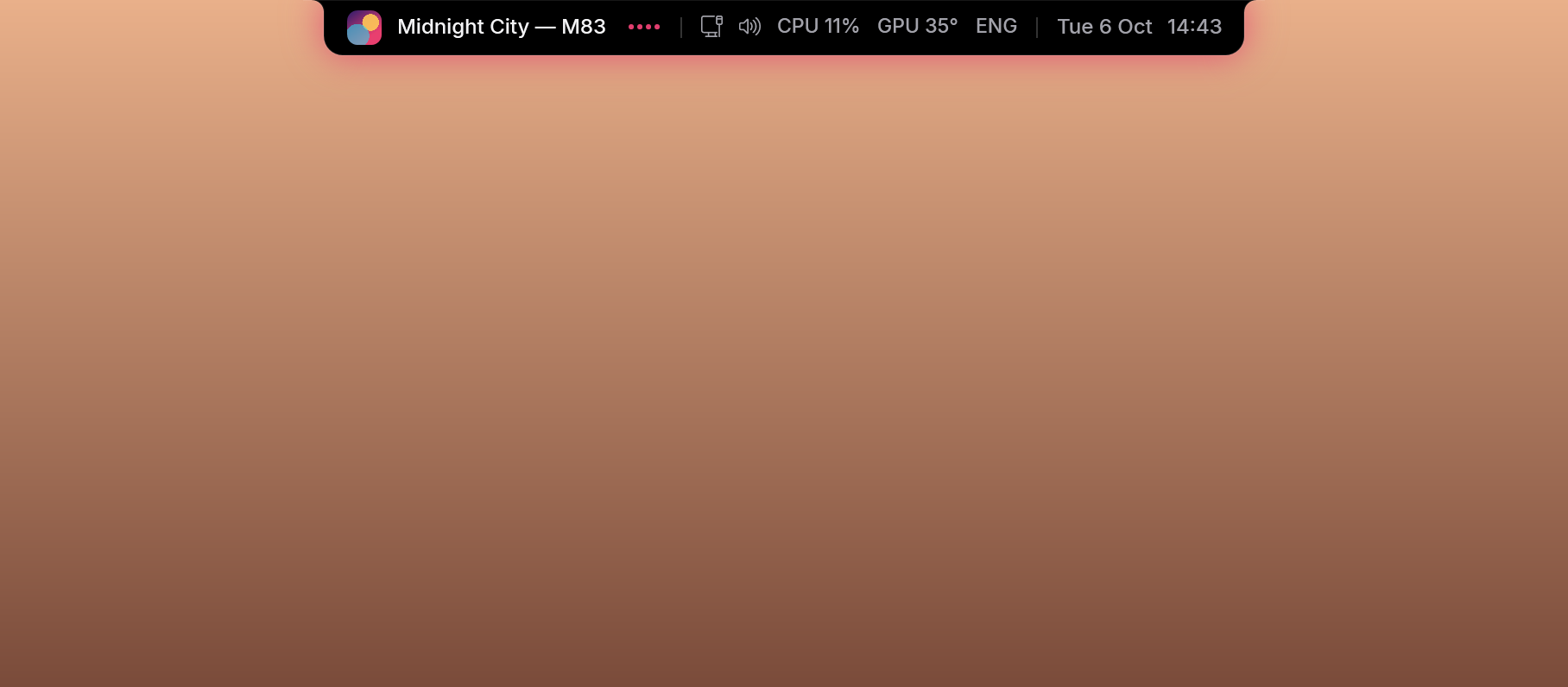
Album artwork and a live equalizer, right in the pill at the top of your screen.
Clock, date and your readouts
You pick what you see: weather, network, volume, battery, CPU, memory, GPU temperature and keyboard language.
System tray icons
The icons from the taskbar's corner (messengers, VPN, antivirus…) live in the notch, in the open panel too: click them, drag them into the order you like (the taskbar follows) and open the hidden ones with the same little arrow Windows has.
Speaks up when it matters
Shows the volume as you change it and leaves a short note when you copy something.
Yours in every detail
Make it smaller or larger (80–150%), pick its colour or turn it to liquid glass, slide it left or right and, if you like, keep windows below it the way a Mac keeps its menu bar. The panel can grow taller for a third row of widgets.
Opens with one move
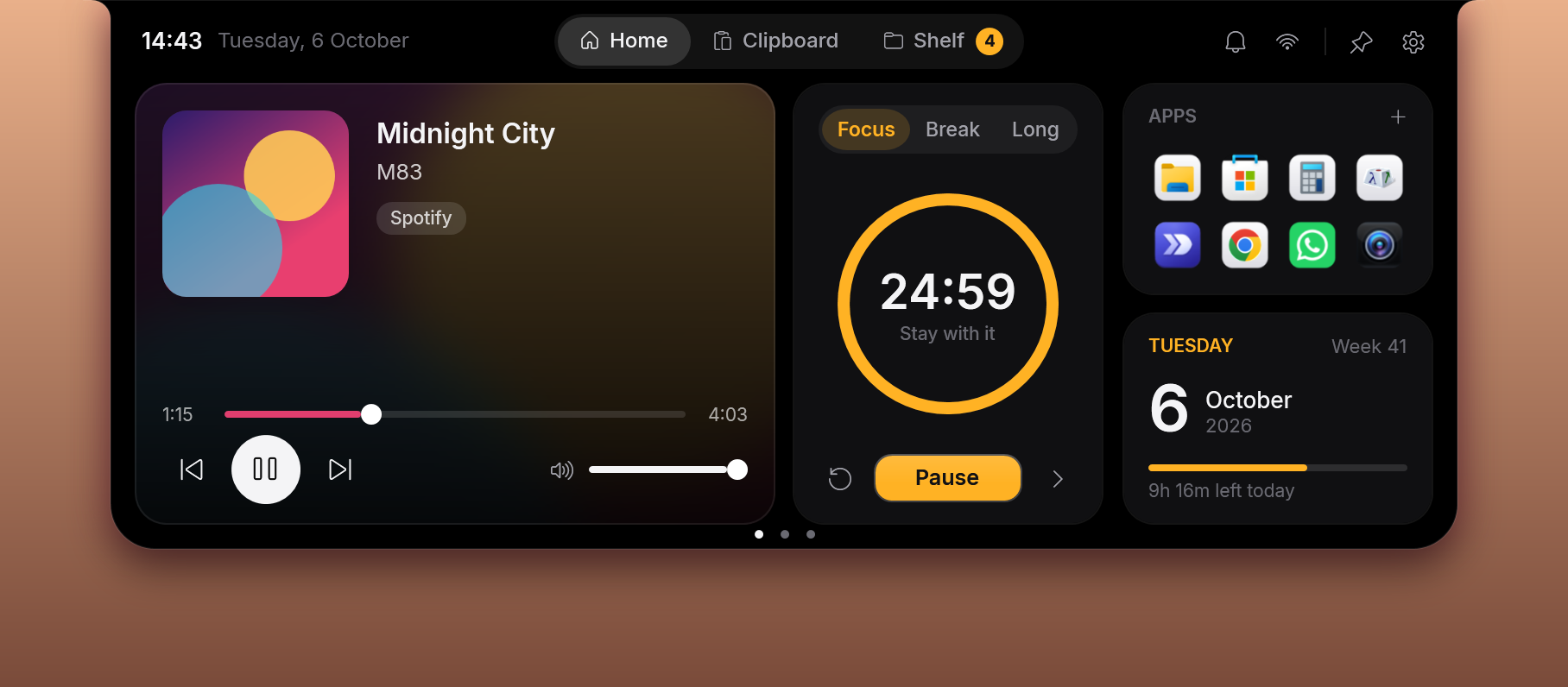
Hover over it (or press Win+Shift+N) and the pill opens into a full panel.
Notifications, right in the notch
You see it when it arrives and find it again later.
A card in the notch
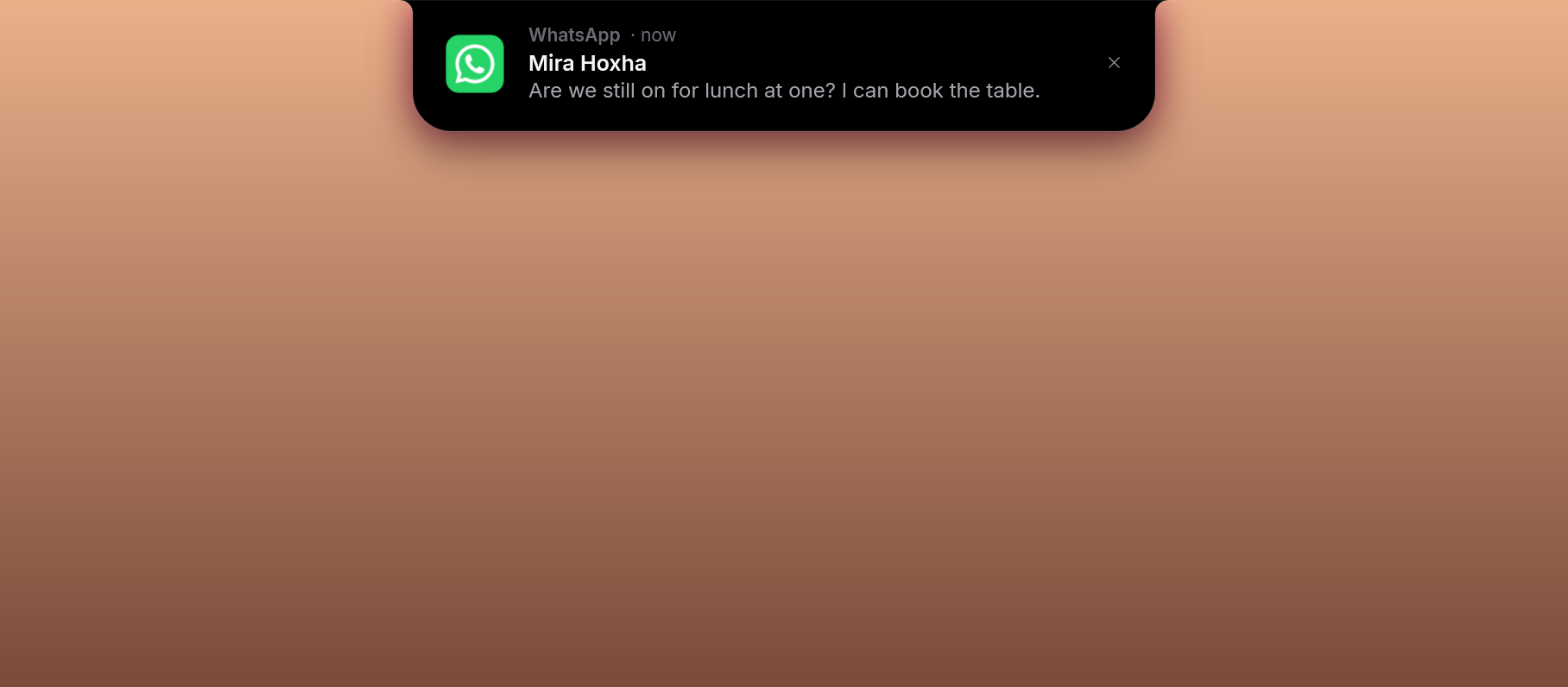
When a notification arrives (a WhatsApp message, an email…), the notch grows into a small card with the app's icon, who it is from and what it says. A click opens that app.
A bell and a list
Afterwards a bell with a count sits beside the clock, and a Notifications widget lists them.
Private when you want
The message text can be kept off screen: the card then shows only which app it is from.
Quiet when you need it
Windows' Do not disturb is respected, and banners can stay quiet during a focus session.
One move and the panel opens
Three pages: Home, Clipboard and Shelf.
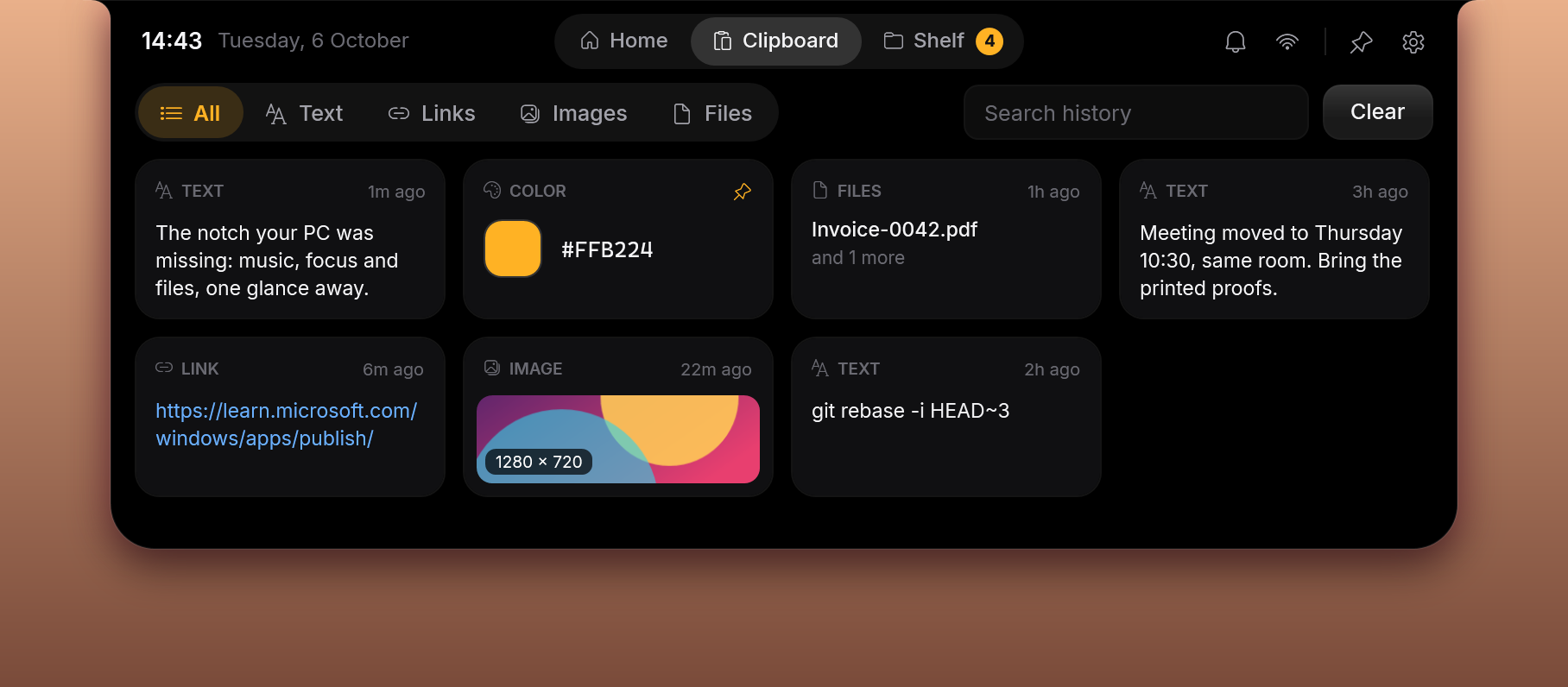
Home with widgets
Media controls, a focus timer (Pomodoro), today and calendar, system vitals, colour-coded tasks, notes and notifications. Drag them into the order you like.
App launcher
Pin any app, folder, file or website and open it with one click.
Clipboard history
The text, links, images, files and colors you copied, with search and filters.
Shelf
Drop files there and keep them at hand until you need them.
A macOS-style Dock, on Windows
The Notch and the Dock can each be turned on or off.

Your apps
Pinned and running apps, with magnification as you move the mouse across.
Badges
The same badges the Windows taskbar shows (WhatsApp's count, Viber's mark…) sit on the Dock's icons, also while the taskbar is hidden. The icon hops when something arrives.
More than apps
Folders and files, the Recycle Bin and a Start button. Every folder you have open in File Explorer gets a place of its own in the Dock, as on the taskbar.
Drag and drop
Drag icons to reorder them and drop files onto an app to open them with it.
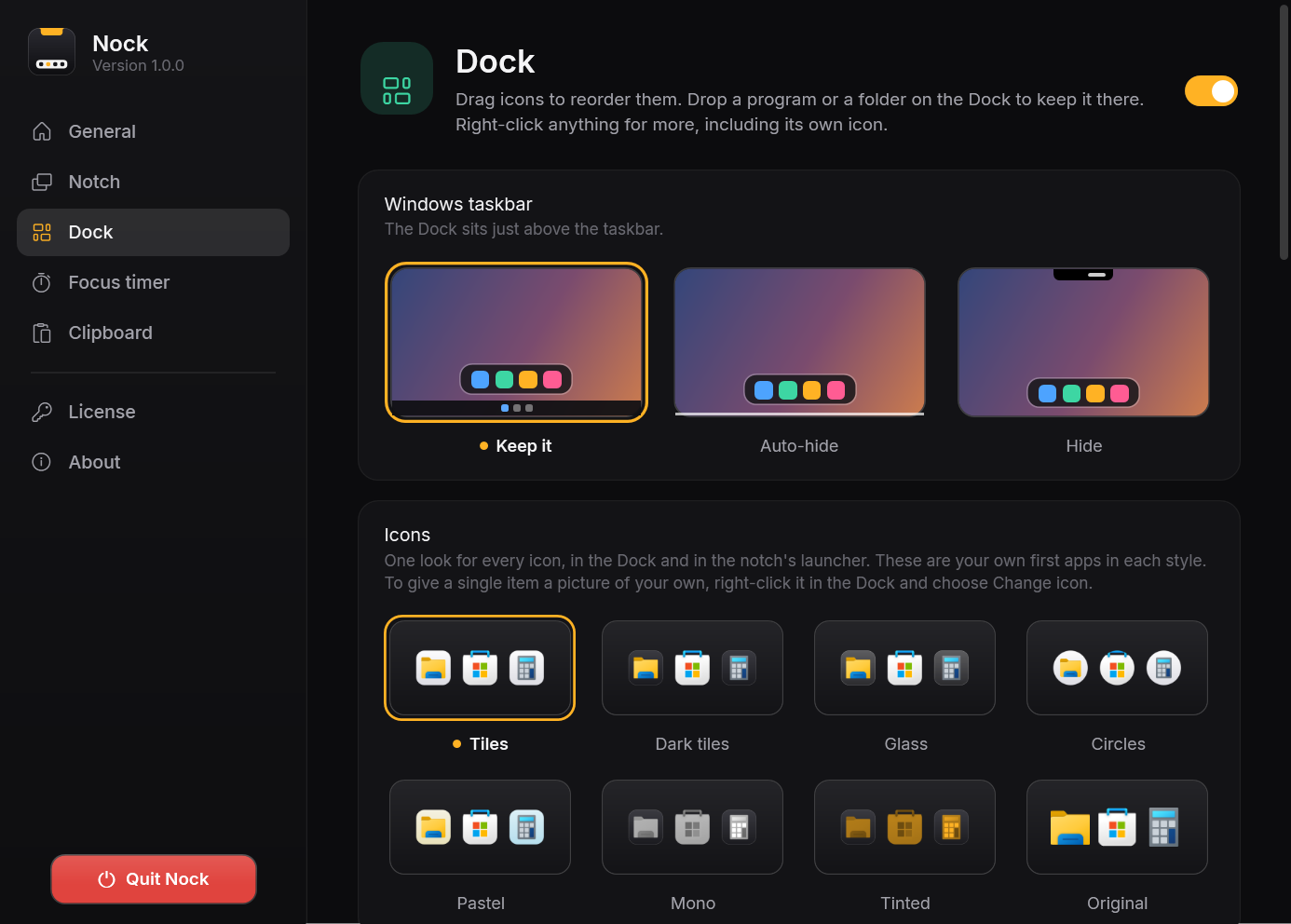
Your apps come along
What is pinned to the Windows taskbar comes over by itself, Store apps included. Drag more in from the Start menu or File Explorer, or use the optional right-click entry “Add to Nock Dock / Add to Nock Notch” in File Explorer.
Looks the way you like
Eight icon styles for the Dock and the notch's launcher: tiles, dark tiles, glass, circles, pastel, mono, tinted and original. Light, dark or liquid glass; auto-hide, or keep windows above the Dock as a Mac does. The Windows taskbar can be auto-hidden or hidden completely.
Native, light and yours
A native app
Built for Windows, not a browser in disguise. Light on your system.
Windows 10 and 11
It runs on both.
No account
You need no account to use it. Everything stays on your PC.
How the license works
No subscription, no surprises.
3-day free trial
Download Nock and use it for 3 days with every feature. No account needed.
€4.99, once
A one-time payment, not a subscription. It covers both the Notch and the Dock.
One license, one PC
A key works on one computer at a time.
Moving to another PC
Deactivate the license in the app (Settings → License) and activate it on the new PC. If the PC was reinstalled or you no longer have it, write to us and we release it.
Backup & restore
Optional: your setup (settings, Dock, notch apps) is kept with your license, so a new or reinstalled PC is ready in one click.
Activation
Open Nock → Settings → License, paste the key and click Activate.
One price, one time
Try it free for 3 days. If you like it, it is yours for €4.99.
Nock
- The Notch and the Dock, every feature
- One-time payment, no subscription
- 1 license for 1 PC, move it whenever you like
- Backup & restore of your setup
- 14-day money-back guarantee, no questions asked
Promo code will be applied at checkout.
Price in EUR; VAT is added at checkout where applicable. Secure payment by Paddle, the seller of record (cards, PayPal, Apple Pay, Google Pay). Terms · Refunds · Privacy
Frequently asked questions
Is it a subscription?
No. You buy Nock once for €4.99 and it is yours. The price covers both the Notch and the Dock.
Can I try it before I buy?
Yes. Download Nock and use it free for 3 days, with every feature. After the trial you need a license to keep using it.
How do I activate my license?
After the purchase your key arrives by email. Open Nock → Settings → License, paste the key and click Activate.
On how many computers can I use it?
One license is for one PC. To move it, deactivate it in the app (Settings → License) and activate it on the new PC. If the PC was reinstalled or you no longer have it, write to us and we release it.
What is backup & restore?
It is optional: your setup (settings, Dock and notch apps) is kept with your license, so on a new or reinstalled PC you get it back in one click.
Do I need an account to use Nock?
No. Nock works without an account and everything stays on your PC. Only if you use the backup is your setup stored with us, together with your license.
How do I install it?
Download the setup, open it and follow the three steps. Nock installs like any Windows program (it is in the Start menu and under Installed apps, where it can be removed too), and updates arrive inside the app.
Does it work on Windows 10?
Yes. Nock works on Windows 10 and Windows 11.
Can I use only the Notch or only the Dock?
Yes. Each one can be turned on or off separately.
What happens to the Windows taskbar?
Whatever you prefer: keep it, auto-hide it or hide it completely. The icons from its corner can be mirrored in the notch, so nothing is lost.
Can I get my money back?
Yes. Within 14 days of the purchase, no questions asked: just reply to your purchase email.